
This Release Candidate addresses the 2.0-beta feedback you shared with us, and also adds the remaining new features we wanted to introduce in Bricks 2.0. Let’s have a look at the highlights of this release candidate.
Command palette
The new command palette provides quick access to various parts of the builder (scope: BUILDER) and helps you navigate, duplicate, and edit posts of any type in Bricks and WordPress (scope: POST TYPES).

You can access the command palette from the builder toolbar by clicking the “Command” icon or via the CMD/CTRL + K keyboard shortcut.
All command palette keyboard shortcuts:
| Keyboard shortcut | Action |
CMD/CTRL + K | Close the command palette |
ESC | Navigate to a specific post type |
TAB > ENTER (to enter selected scope) | Navigate between search and scopes |
/ (as the first character in search input) | Enter scope “Builder” |
/ (as the first character in the search input) | Enter scope “Post Types” |
/0-9 (forward slash followed by number) | Navigate to a specific post type |
ARROW UP/DOWN + ENTER | Navigate to a search result and open it |
You can navigate between the “Builder” and “Post Types” scope via TAB + ENTER, or by typing # to enter the “Builder” scope, or / to enter the “Post Types” scope.
Clicking on any search result while in the “Builder” brings you to the relevant screen.
When clicking on a search result while in the “Post types” scope, it edits the selected post, page, template, etc. in Bricks. If the pot type is not enabled for Bricks, it’ll edit it in WordPress.
NOTE: The “Pages” panel has been deprecated as its functionality is now 100% available in this new command palette.
Let us know which other actions you’d like to see integrated into the new command palette.
Element: Quick Access bar
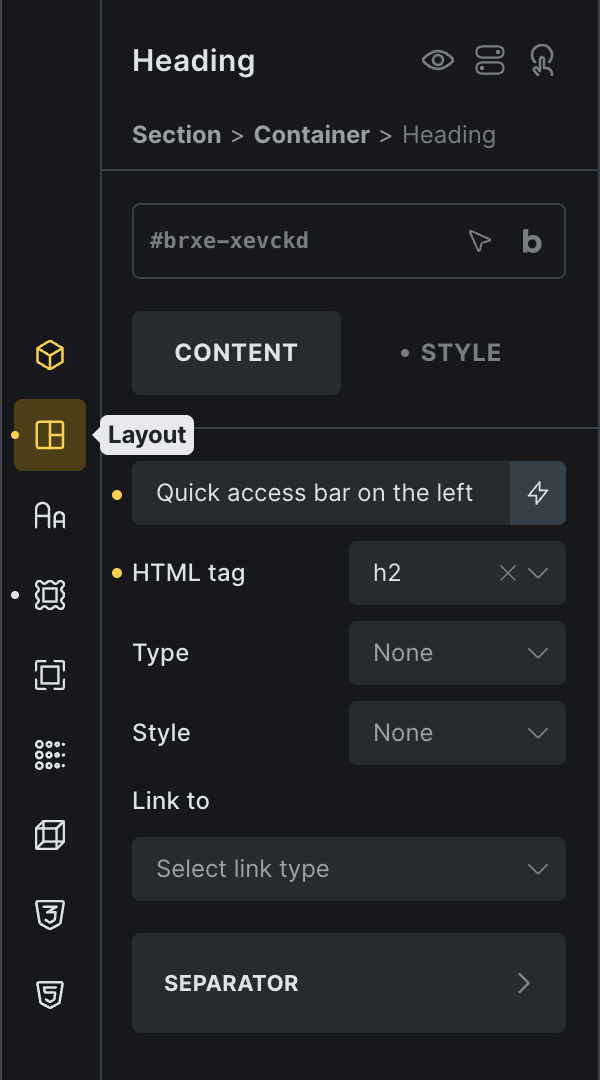
Another productivity boost for all power users and keyboard enthusiasts is the new Quick Access bar, visible on the left-hand side when editing any element.
Clicking on an icon opens the “Content” tab or any control group of the “Style” tab (Layout, Typography, CSS, etc.).
The trusty setting indicators tell you which control groups contain any settings at the current breakpoint.
Use the keyboard shortcut CMD/CTRL + ALT + NUMBER to open the respective tab and control group.
Just holding down CMD/CTRL + ALT displays all available numbers next to the corresponding control group icon.
The arrow icon at the bottom of the bar allows you to hide the quick access bar.
Theme Styles: Loading methods
Up until now, Bricks has always only loaded the most relevant theme style.
Which is fine if you only have one theme style for your entire website. However, it prevents you from organizing global styles, such as your typography, in a single theme style (condition: Entire website), which is accompanied by more specific theme styles that should only apply to a particular post type, for example.
This limitation is now gone as we introduce the new “Theme styles: Loading method” setting under Bricks > Settings > General, that lets you choose how you want your theme styles to be loaded:
- Most specific (= default)
- Load all matching theme styles
Select the “Load all matching theme styles” option if you want to load all theme styles whose conditions are met by the requested page.
Stylesheets (via Theme Styles)
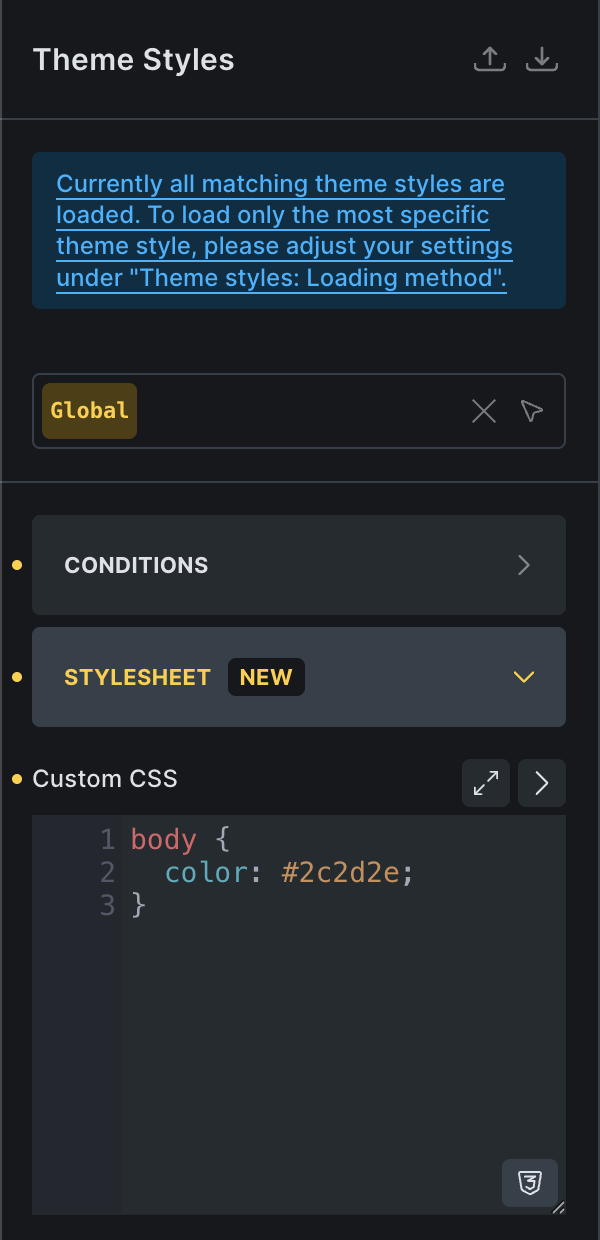
Create & manage stylesheet right inside the builder through the new “Stylesheet” section in the theme style editor and use the theme style “Conditions” feature to load a stylesheet exactly where you need it.
This new feature pairs perfectly with the new theme style loading method and the full-screen code editor, which we also introduced in Bricks 2.0 to help you create your stylesheet right inside the builder.
Classes & Variables Dropdown: Categories (toggleable)
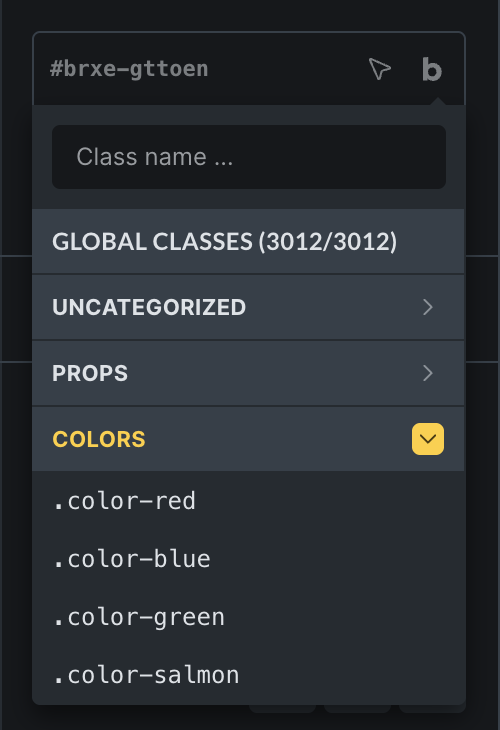
Browsing classes & variables just became a whole lot easier.
The class & variable picker dropdown now organises your classes according to the categories you’ve set in the class or variable manager.
Click the category title in the dropdown to show/hide the classes/variables within. Bricks also remembers the open/close state of each category (localStorage).
Map: Cluster & marker improvements

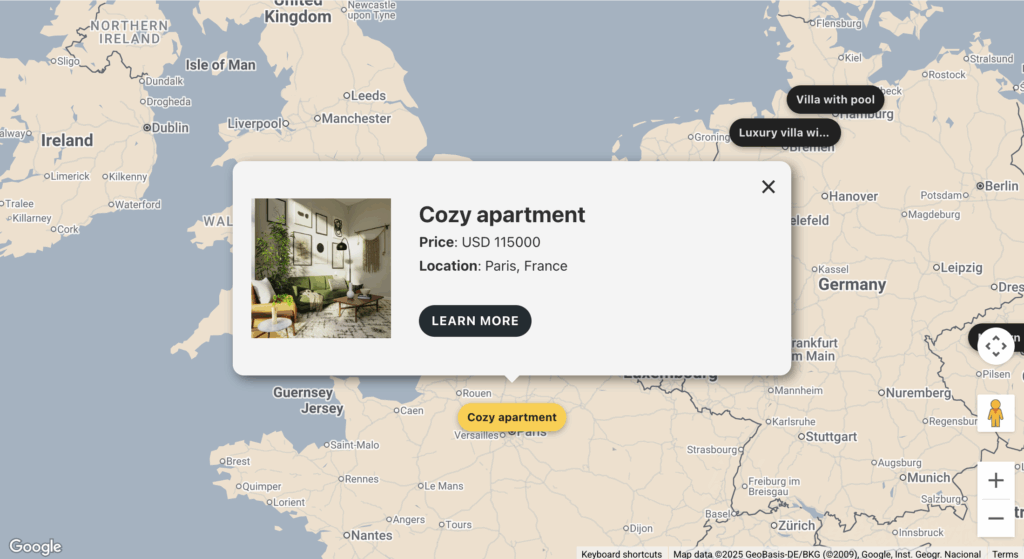
The map marker can now also be text. Both marker types, image and text, support dynamic data (see the screenshots above).
Accessibility has been improved. Navigate the map markers via the TAB key. While doing so, the map will auto-pan to the active marker location. Press ENTER to open the infobox, and ESC to close it.
Plus, you can now also style the background and text color of the map cluster.
Full changelog
- Command Palette (CMD/CTRL + K)New
- Element: Quick Access Bar (CMD/CTRL + ALT + NUMBER)New
- Form: Add “step” attribute (for Number field)New
- Global Class Dropdown: Toggleable categoriesNew
- Image control: “Image not found” clear setting buttonNew
- Interactions: New “Root margin” control for “Enter viewport” triggerNew
- Map: Custom marker support dynamic data (icon & image)New
- Offcanvas: Setting for transition-timing-functionNew
- Sticky header: Hover style settingsNew
- Theme Styles: Stylesheet (via “Code” control) & Loading method (load all matching theme styles)New
- Variables picker: Toggleable categoriesNew
- Font Weight: Support custom valueNew
- Add to cart: Extra margin on variable product labelImprove
- Component: Instances counter includes in-template occurencesImprove
- Connect property: Show “link” icon if connectable properties detectedImprove
- Dropdown: “Open on” Click works only on text and icon directly + cursor is set to pointer only on those two elementsImprove
- External CSS files: Generated CSS file for all other pages that use this componentImprove
- Form: Password field > Password toggle dropdown spacingImprove
- Icon manager: “Move Selected” dropdown should be hidden with single setImprove
- Icon: SVG Fill & Stroke color are not alignedImprove
- Rerender controls when editing a different classImprove
- Slider nestable: Adding only one custom arrow icon places it above the default arrow (in builder)Improve
- Spacing control: Opposites linked auto-update valueImprove
- Toggle query loop on/off from propertyImprove
- Toggle: Clear bar settings when choosing an iconImprove
- When editing component root element, there is no purple border (builder)Improve
- Slider nestable: Next arrow top placeholder value missingImprove
- Updated: PhotoSwipe 5.3.7 to 5.4.4 & Lightbox “Cropped” settingImprove
- Alert: Brief display of “This element doesn’t exist” notice (when clicking element on canvas)Improve
- Bricks Settings: Custom auth pages sort alphabeticallyImprove
- Builder: Load on slow connection displays builder capabilities notice brieflyImprove
- Control with dynamic data picker: Input cut offImprove
- Font Weight: Support custom valueImprove
- Hide element button: Support componentsFix
- Bricks > Settings: Code backslashes being strippedFix
- Builder Access: “Edit content” capability can reset ID stylesFix
- Builder inside builder, if clicking pagination while in previewFix
- Builder: First loop item does not render all elements correctly (component)Fix
- Bulk edit: Hide element only applies to one elementFix
- Bulk edit: After wrapping elements, newly created element is selected, but controls do not apply to itFix
- Bulk edit: Classes are applied to all, previously bulk edited elementsFix
- Bulk edit: Wrap > Undo > Wrap produces wrong structureFix
- Button: DD not parsed correctly on first loop (inside component)Fix
- Builder: Canvas guideline/border not shown, if component root element is selectedFix
- Connect property: New property default popup paddingFix
- Contextual spacing: mobile-first breakpoint not appliedFix
- Control code: Code copied from class to ID levelFix
- Property: Many options popup not scrollableFix
- Create property via “Hide element” popup: Layout incorrectFix
- Critical error when connecting “Toggle” property to the “Query loop”Fix
- Dropdown: SVG control applies to SVG icon inside itFix
- Dynamic CSS not working in Load more/AJAX pagination if query located inside Component or nested queryFix
- Dynamic data for Image element works, but panel says “Dynamic data is empty” (builder)Fix
- Element, that contains a component can still be saved as a componentFix
- Filter – Search: SVG icon with custom size is hiddenFix
- Code signing: Issues when code contains JSFix
- Map: Initialised without valid Map IDFix
- Bulk select not working correctly in componentsFix
- Nav Nestable: Menu alignment is offFix
- Nested Nestable accordion title toggle not workingFix
- Nested component selected: New element is not addedFix
- Offcanvas: When closing, the backdrop is not on top anymoreFix
- Offcanvas: Open on page load & Offset effect transitionFix
- PHP error (500) when saving components when select property value is emptyFix
- Polylang String Translation not working for dynamic tag valuesFix
- Popup (AJAX): Language parameter not passed to backend (WPML & Polylang)Fix
- Query: Posts per page are not working when “Is Main Query” is enabledFix
- Rating element: Default SVG unecessary XML declarationFix
- Render with WordPress: Block Styles Are Being DequeuedFix
- Select nested component on canvas shows “Element doesn’t exists” in control panelFix
- Show outer post: Causing inline CSS not updated in the canvas (duplicated styles in builder)Fix
- Unlinking imported components breaks structureFix
- Template shortcode with cart-related elements in Cart page causing PHP fatal errors when editing in GutenbergFix
- WC Error generated when using Related Products QueryFix
- WP Admin > Bricks templates: Filter by template type causes some WP menu items missingFix
- query_results_count is not working if component has Query LoopFix
- wpml-config.json missingFix
- Interactions: Animation start + Animation end (with delay) does not run properlyFix
- Main Query setup query_vars don’t merge native parametersFix
- Selector UI: Deselect a custom selector unsets icon controlFix
- Selector detector: Switching from custom selector to pseudo classes hides the elementFix
- Dynamic Data: “post_id” not correctly parse when using in subquery Query Editor (Frontend)Fix
- Import template with theme style causes console errorFix
- Map: Elements that require JS aren’t working in Info Box TemplateFix