
Build and manage Bricks sites with AI.
Connect an AI client such as Codex or Claude Code to Bricks. Describe what you want to build, then make it your own with visual editing.
Experimental: test on local or staging sites. Keep AI Abilities off on production.
Connect your AI clientStart with words. Finish in Bricks.
Describe a page and let AI build it using your existing design system. Explore the result, then fine-tune layouts and components in Bricks’ visual editor.
Build pages. Refine the whole site.
From a new landing page to a consistent design system, use AI to build and refine the parts of your site that matter.
Turn a brief into a page
Create landing pages and new sections with AI, using your site’s existing styles. Continue shaping every detail in Bricks.
Work with your design system
Create and refine global classes, variables, and theme styles with AI. Reuse your existing design system across new pages and sections.
Build reusable templates
Create headers, footers, and content templates, then choose where they appear. Refine their layouts in Bricks whenever you need.
Connect layouts to content
Build layouts powered by posts, products, or custom fields. Ask AI to configure query loops and dynamic content, then refine the presentation visually.
Give your store your own style
Create product, shop, and store layouts that fit your brand. Use AI to refine your WooCommerce templates in Bricks.
Turn HTML and CSS into Bricks layouts
Bring an HTML/CSS design into Bricks and continue working with native elements and visual controls.
Your AI client. Your Bricks site.
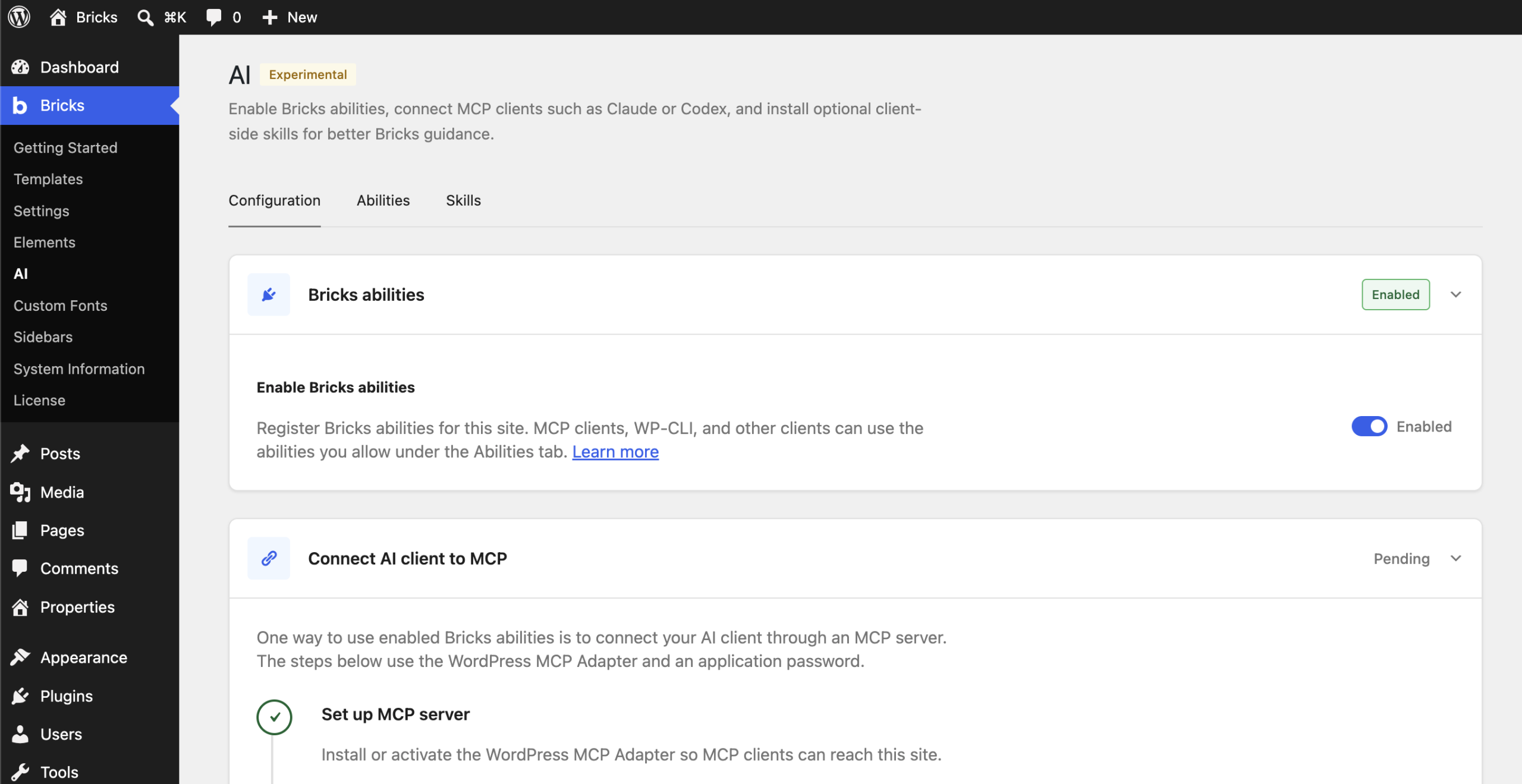
Connect your preferred AI client from Bricks → AI. Enable the abilities you need and follow the setup instructions for your client.
Connect your AI client
Use Codex, Claude Code, or another compatible AI client with Bricks 2.4. The Academy walks you through connecting your client and getting started.
Choose the scope
Control individual abilities in Bricks → AI → Abilities. The connected WordPress user’s permissions still apply.
Add Bricks know-how
Optional Bricks skills give compatible AI clients guidance for working with your layouts and design system.
Your next idea starts with a prompt.
Create with AI. Refine visually. Make it yours in Bricks.